Play stays disabled
The homepage checks graphics support before enabling Play. The game needs JavaScript and WebGL 2, plus a texture format supported by one of the available builds.
“This browser cannot open DOKDO.” means the WebGL 2 check failed. “This device cannot use an available game build.” means the browser could not use either available texture format.
- Let the browser check finish. If it reports a problem, press Check again.
- Update your browser, close it and open the page again. Make sure JavaScript is allowed for this site.
- On desktop, check whether graphics acceleration is available and enabled in your browser settings. Restart the browser after changing it.
- If the check still fails, try another current browser or device. Support depends on the browser and its graphics hardware.
The game does not load
The game files start downloading after you press Play. A slow connection can take longer to reach the game screen. Keep the tab open while the download makes progress.
If loading stops or an error appears, reload the page once. Check that your connection is working and close other demanding tabs before trying again. If the same error returns after an update, follow the cached file steps below.
If the problem continues, note the exact error message before asking for help. These steps apply to the browser game on this site.
Refresh cached files
Use this only when reloading has not resolved a loading error. Cached game files and saved site data are different browser settings.
- Open your browser's browsing data settings.
- Select cached images and files only. Leave cookies and site data unchecked.
- Clear the selected cached files, return to the homepage and press Play again.
Clearing site data removes the local DOKDO save. If your browser does not offer a separate cache option, do not clear all site data to fix a loading problem.
Portrait mode on phones and tablets
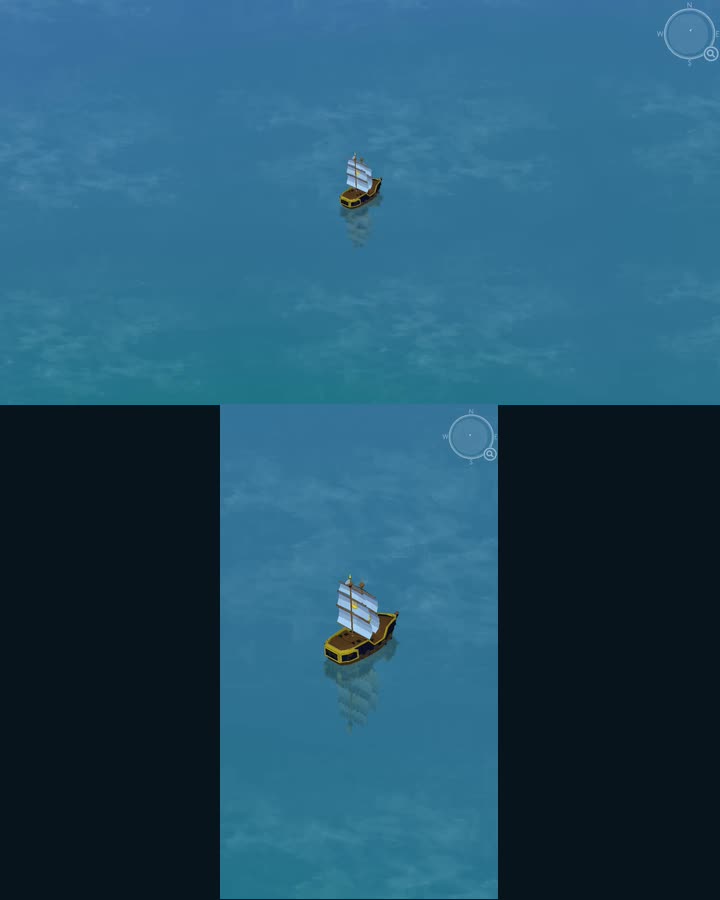
Keep your phone or tablet upright while playing. If the game asks you to rotate to portrait, turn the device upright. If the display does not follow, check your device's rotation lock.
The game pauses behind the orientation message. Return to portrait and keep the game tab visible to resume.
Storage warnings
A storage warning means the browser could not provide persistent storage for the game. Progress may last only while the current tab stays open.
For future sessions, use a normal browsing window and allow this site to store data. Private browsing or browser storage restrictions can prevent progress from surviving after the tab closes.
Ask for help
If these steps do not resolve the problem, share the browser name, device model and exact message in the DOKDO Discord server. Say whether the problem happens before Play, during loading or after the game opens.
For steering, combat and island capture, read the DOKDO gameplay guide.